Setting Up Your Clinic: Facilities
Before you can begin scheduling patients or billing, it's essential to set up your clinic's core information. This guide will walk you through configuring your facility details for a typical U.S. primary care office.
Prerequisites
- Admin Login to the System
Configuring Your Facility
-
From the main menu, navigate to Admin > Clinic > Facilities.
-
You will see a list of facilities. Normally a clinic is created by default when installing OpenCoreEMR, so there will likely be a facility when you naviage here. Click on the name of the facility to edit it. If there is not a facility listed, there, type one in.
-
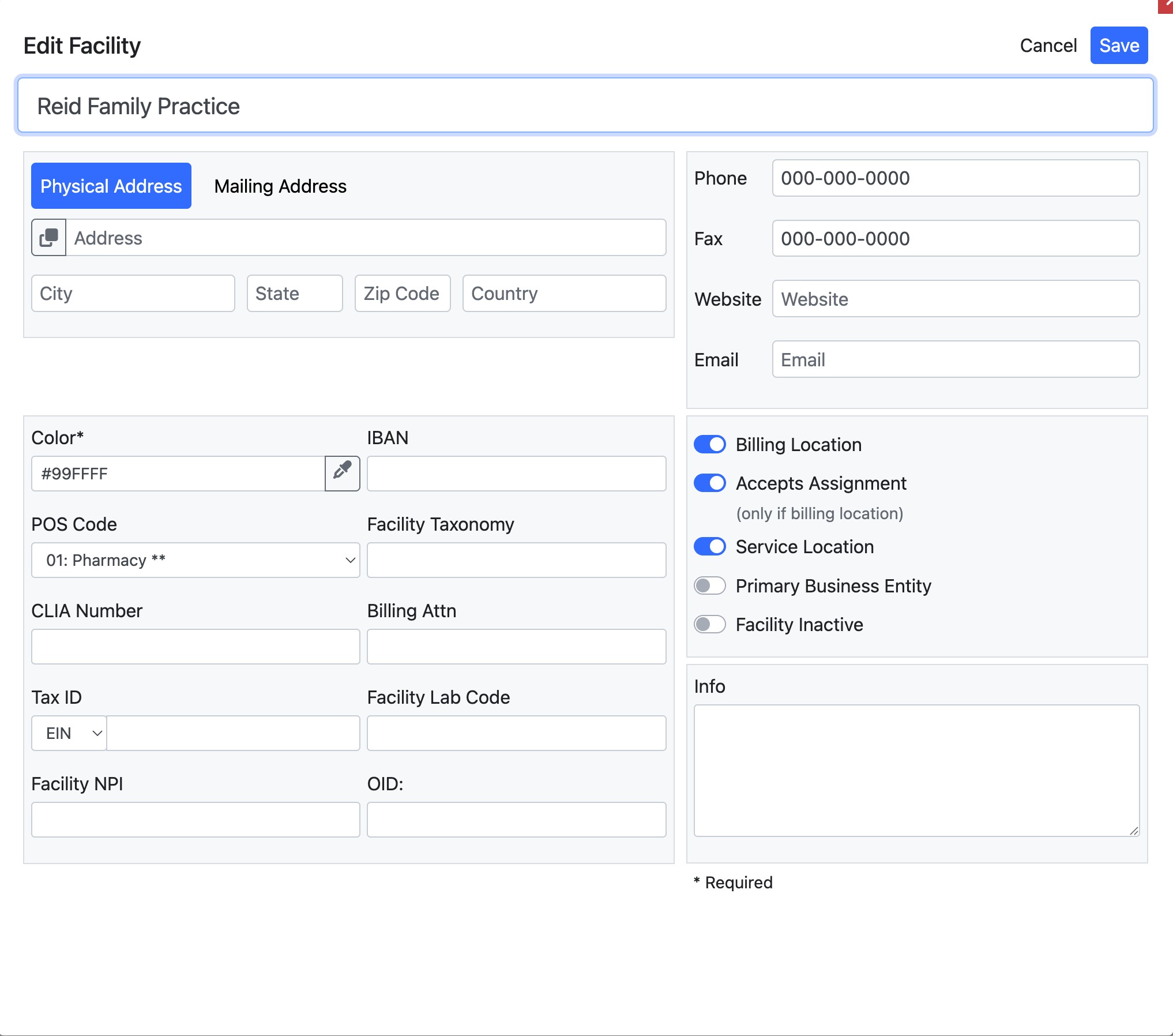
Fill in the key information for your clinic. The most important fields are:
- Name: The legal name of your practice.
- Location: The physical address of your facility.
- Phone: The main phone number for the clinic.
- Color: Choose a color for your facility. This is useful for visually distinguishing between different locations on the calendar if you have more than one.
- POS Code: The Place of Service code. For a standard office visit, this will be 11.
- Facility NPI: The National Provider Identifier for the facility itself.
-
It's also good practice to fill in your Tax ID number (EIN). EIN number is required for e-prescribing.
-
Once you have entered all the information, click the Save button.
Your clinic is now set up. This information will automatically populate on claims and other official documents, ensuring accurate billing and communication.