Managing Provider Availability
Prerequisites
Step 1 - Verify the Provider Exists
Before you attempt to schedule a provider, you need to verify that the provider exists. From the Main Menu, go to Admin -> Users. Verify that the provider exists in the list. If not, create a New Provider.
Step 2 - Go to the Calendar
Go over to Calendar. Select the Provider from the box in the left hand screen.
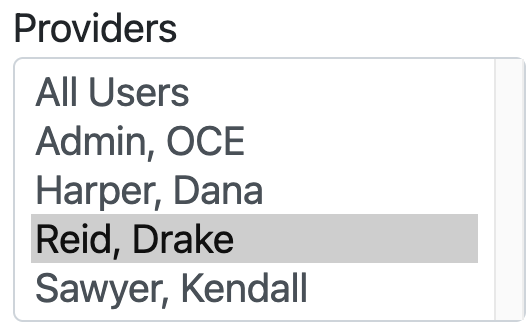
You will see that provider appear on the calendar.
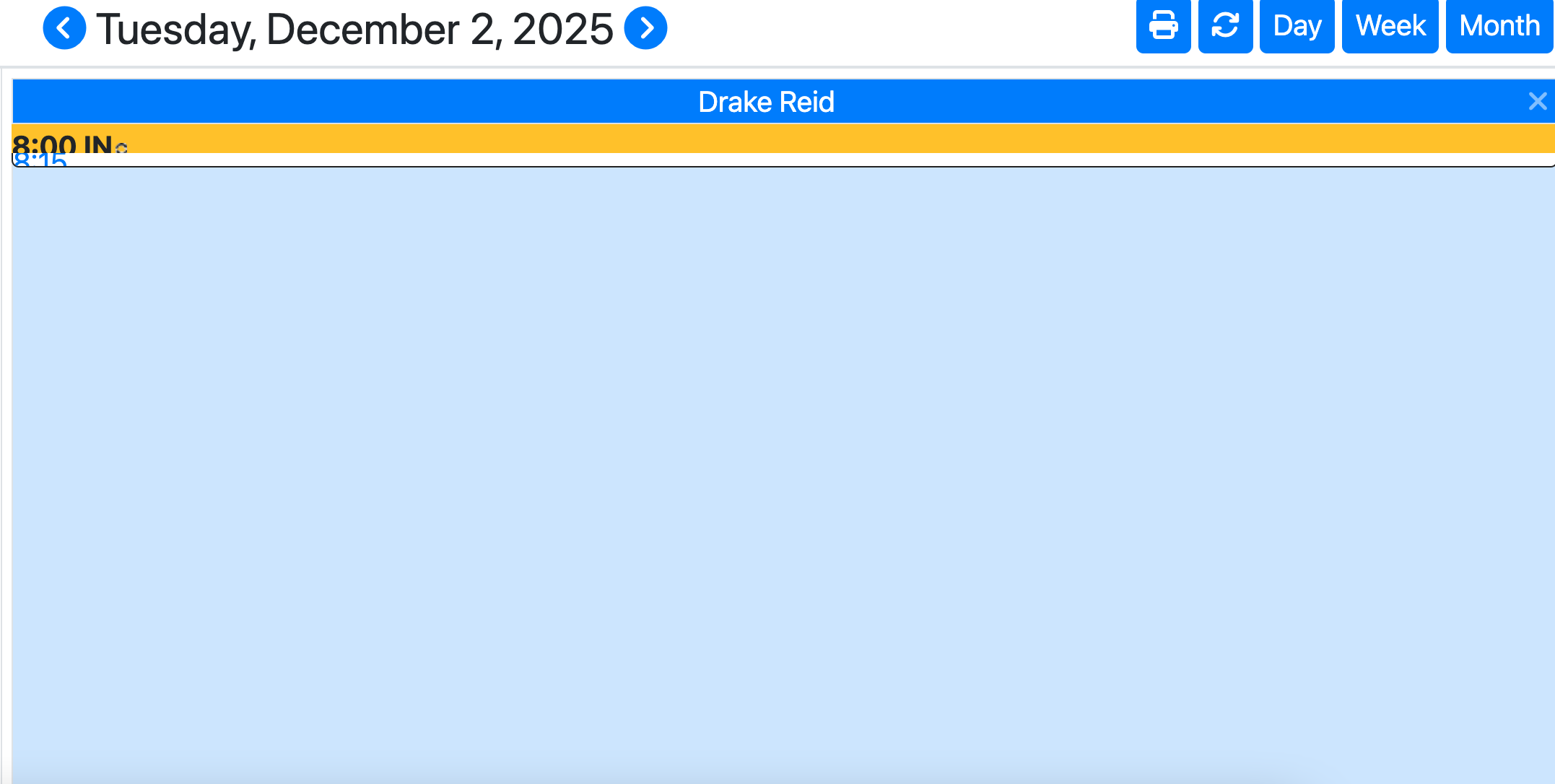
Notice that there is an In already defined for the doctor selected on screen. Click on that event to edit the provider's schedule.
Step 3 - Edit the Schedule for the Provider
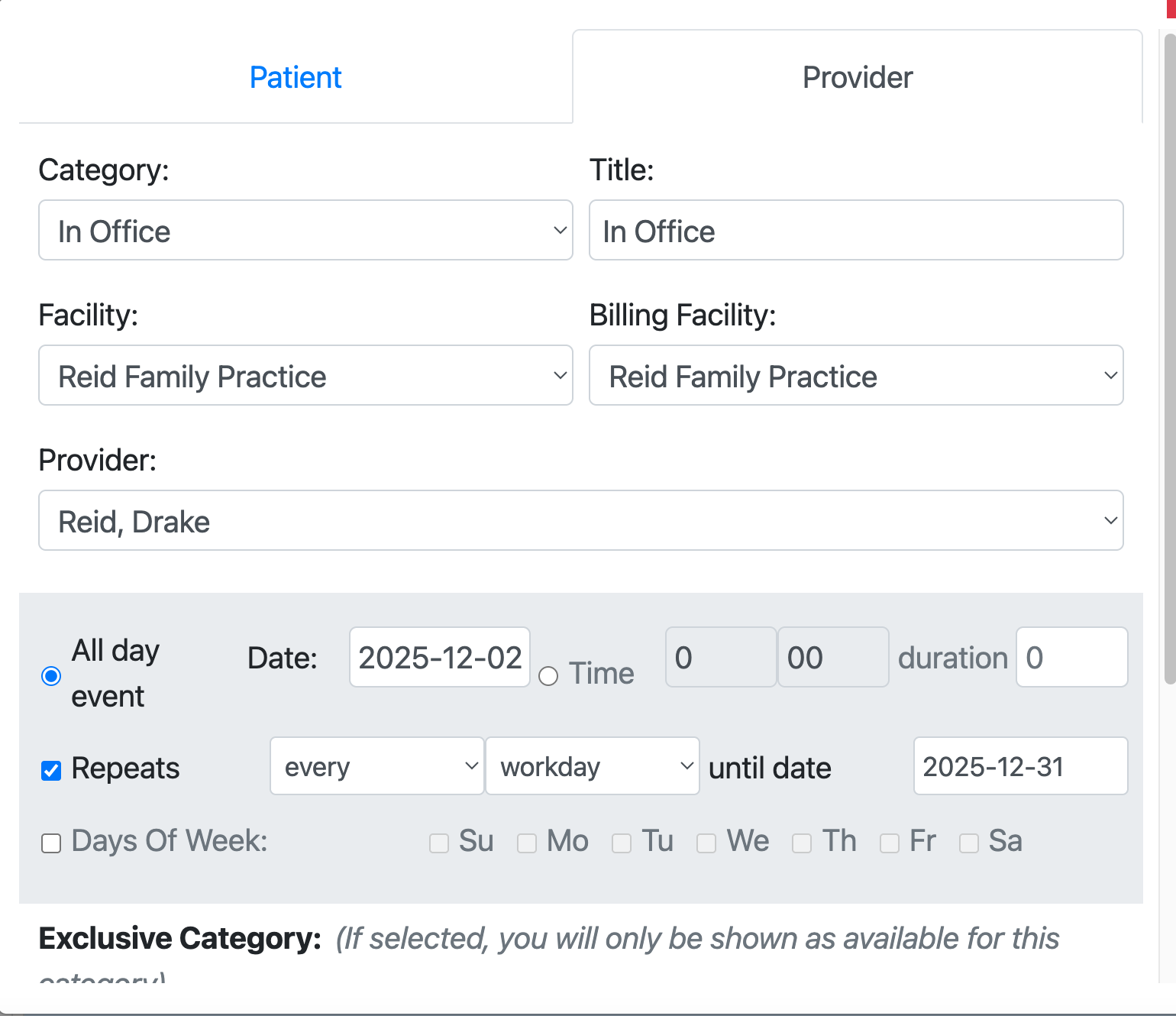
- Category - Select from the following
- In Office - General provider availability
- Out of Office - Provider unavailable block to denote they cannot be scheduled for patient visits. This overrides normal provider In Office availability.
- On Vacation - Provider unavailable block to denote vacations
- Lunch - Provider unavailable block for lunch breaks
- Reserved - Provider unavailabe block to sets aside time for things like Administrative Work, Provider Meetings, Breaks, or Hospital Rounds
- Title - How the block of time is shown on the Calendar
- Facility - The name of the facility (useful if you have more than one facility)
- Billing Facility - How billing is allocated
- All Day Event - Is this an all day event?
- Date - What is the start date or date for this event
- Time - if not an all day event, what time does the event start
- Duration - Length of event block in hours and/or minutes
- Repeats - How often does this repeat? And when does it end?
- Days of Week - Instead of repeating, is is only for certain days of the week?
- Exclusive Category - Blocks time for certain categories, like if the provider wants to only have new patients in the morning and follow ups in the afternoon, youy could blcok time this way.
- Comments - a text field to put in comments to help you remember why you blocked time this way.
Note: When scheduling appointment, certain users may have permissions to override unavailability blocks.
Step 4 - Click Save
Click Save to complete your changes.