Prescriptions in OpenEMR
OpenEMR can manage prescriptions whether you are printing them or sending them electronically through an integrated service. This guide will show you how to set up a patient's pharmacy and the two different workflows for finalizing a prescription.
- Admin Credentials
- Configured eRx
Adding a Patient's Pharmacy (Required for eRx)
Before you can send a prescription electronically, you must select the patient's preferred pharmacy.
- From the patient's dashboard, locate the Demographics widget.
- Click the pencil icon on the widget to edit the patient's demographic information.
- On the Demographics screen, scroll down to the Choices section.
- Find the Pharmacy field and click the Select button next to it.
- A search window will open. Search for the pharmacy by name or location and select it from the results.
- Click Save at the bottom of the Demographics page to link the pharmacy to the patient's record.
Creating and Finalizing a Prescription
The process begins the same way for both printed and electronic prescriptions.
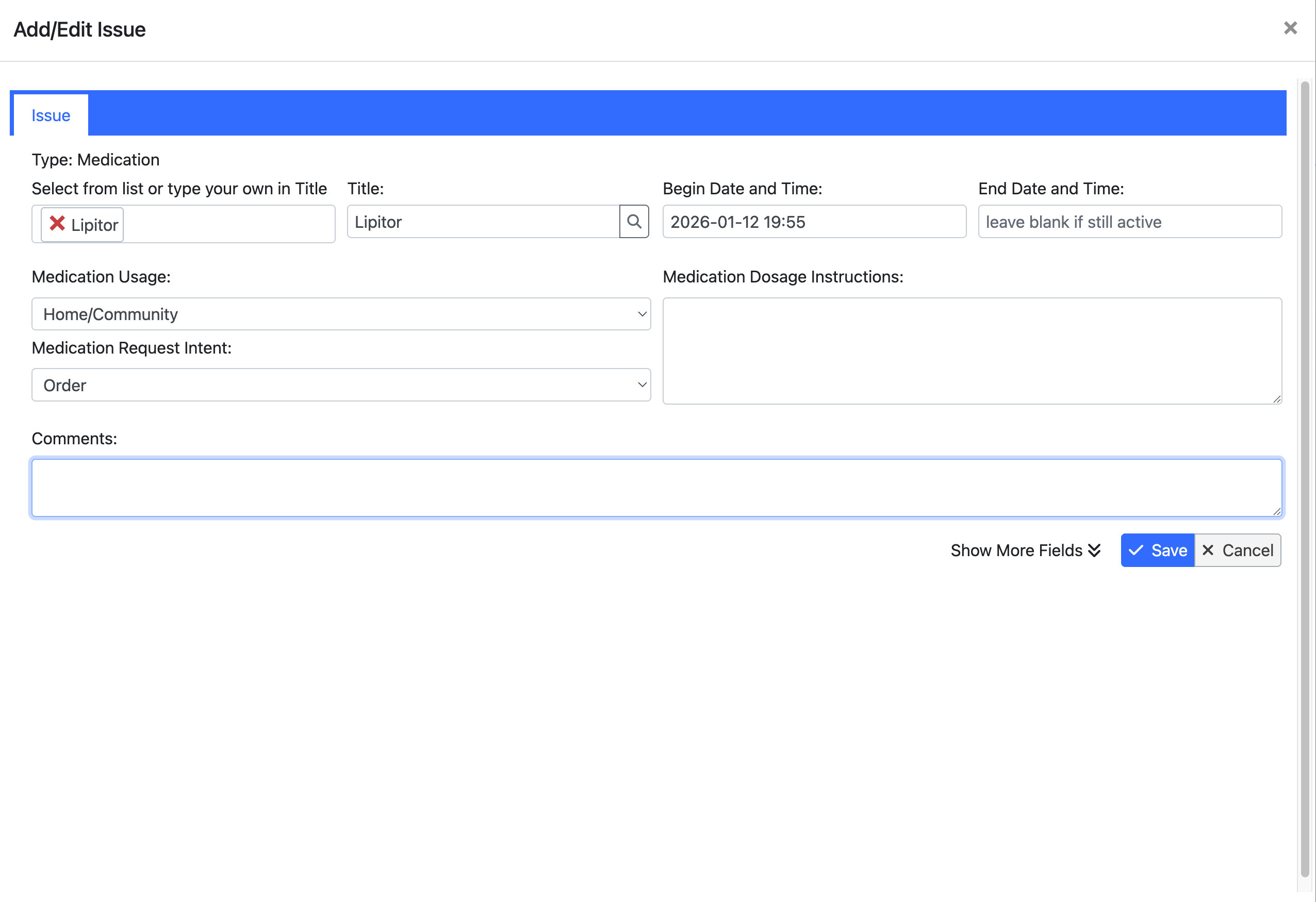
- From the patient's dashboard, find the Medications widget and click the pencil icon.
- Click Add. You now have two options: * Search: Type the name of the drug to search the database. This is the standard method for e-prescribing. * Type your own: Manually enter a custom medication or supply.
- Fill in the prescription details, such as dosage, quantity, and refills.
Your next step depends on your clinic's configuration.
Workflow 1: Standard OpenEMR (Printing Prescriptions)
If your clinic does not use an external eRx vendor, you will print the prescription.
- After filling in the prescription details, select Print as the destination.
- Click Prescribe. A printable version of the prescription will be generated for you to sign and hand to the patient.
Workflow 2: With an External eRx Vendor Enabled
If your clinic is integrated with a service like Weno or Ensora (NewCrop), you will send the prescription electronically.
- Ensure the patient's pharmacy has been set (as described in the first section).
- After filling in the details, ensure the Transmit or eRx option is selected.
- Click Prescribe. The prescription will be sent securely and electronically to the patient's selected pharmacy.