Ordering and Managing Lab Procedures
From time to time your provider will order Laboratory Tests and Procedures for your patients and can be effectively managed in OpenEMR.
Prerequisites
- Administrator has loaded the necessary lab and procedure codes into OpenEMR. Please note, that by default the standard installation of OpenEMR does not come with CPT and LOINC codes preloaded. With no code sets, the search function on the order screen will return no results.
TIP - Codes
CPT Codes - used for medical services and procedures
LOINC Codes - used for laboratory tests and observations
Creating a Lab or Procedure Order
Lab Orders are created within the patient's encounter. Within the patient's encounter screen, select Orders -> Procedure Order.
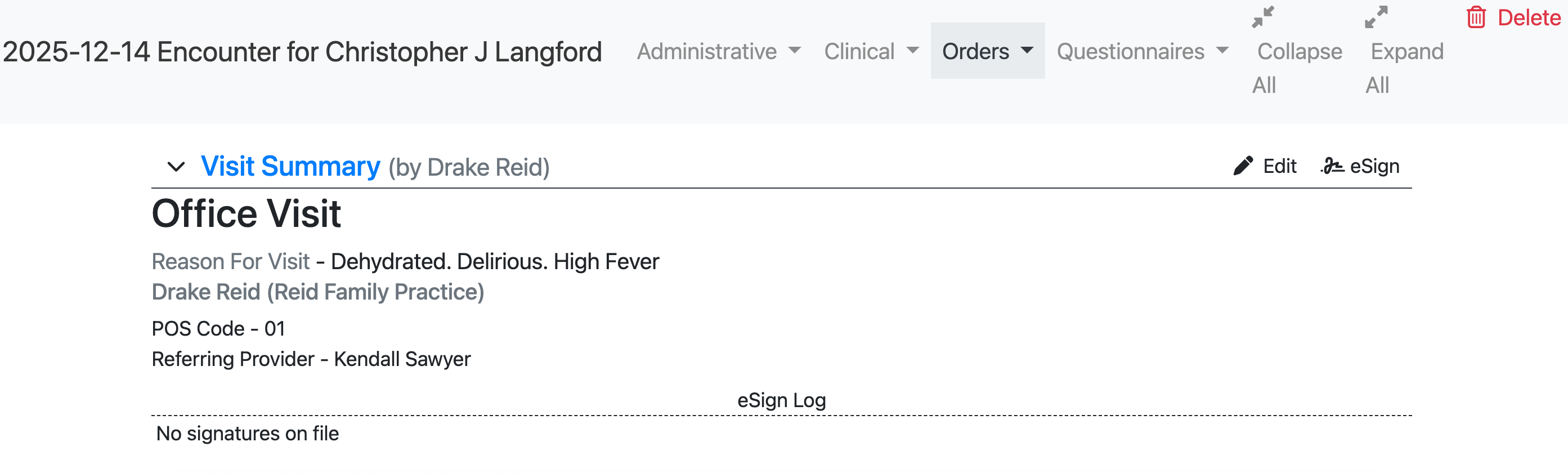
Step 1 - Enter the information required for the order
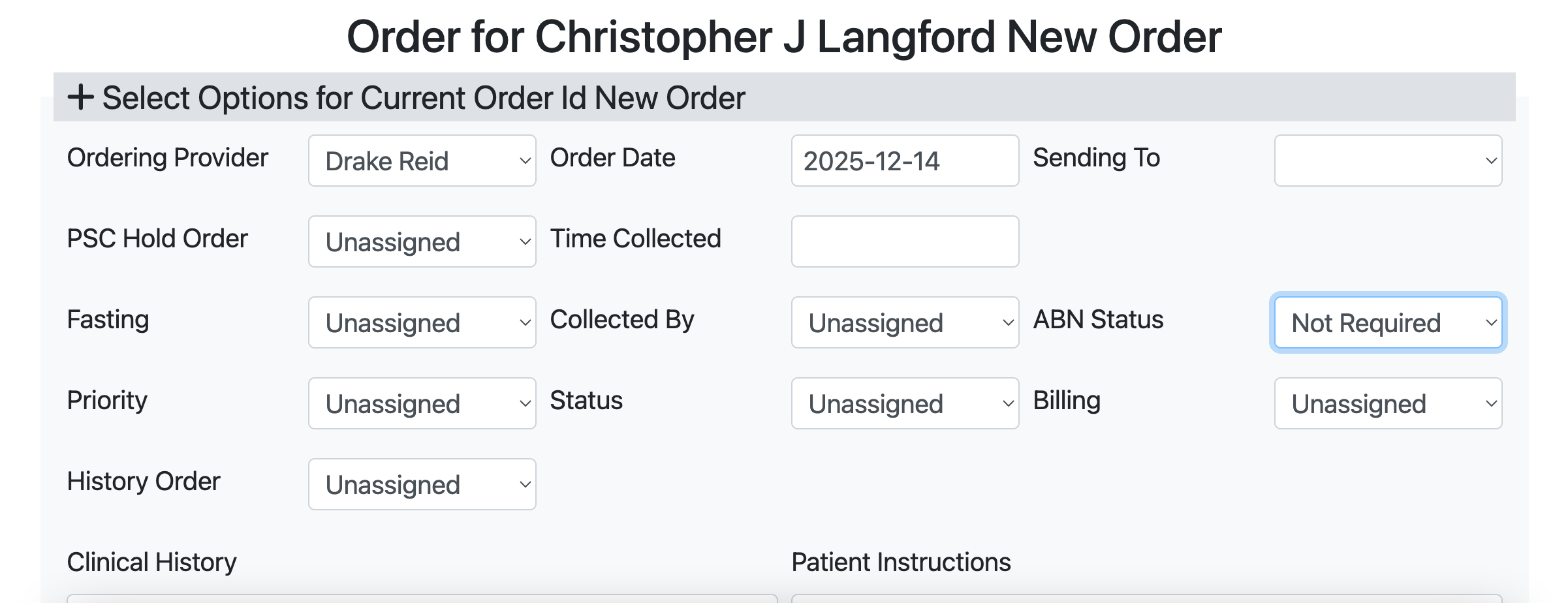
- Ordering Provider - The name of the provider creating the order
- Order Date - The date of the order
- Sending to - Lab to send the order to
- PSC Hold Order - Patient Service Center. A yes/no field. Will the order be held at an external lab because the speciment is collected at an esternal laboratory
- Time Collected - At what time was the specimen collected
- Fasting - Is fasting required by the patient before the test is performed
- Collected By - Who collected the specimen
- ABN Status - Advanced Beneficiary Notice of Coverage is a Medicare required notice given to a patient before a service is performed when Medicare may not pay for it. It is used to inform the patient that they may be financially responsible.
- Priority - What is the priority for this laboratory order
- Status - The exact list of status options is depends on your version and implementation of OpenEMR but here is a typical list of statuses
- Pending - New order has been created but notyet transmittted to an outside lab or completed
- Routed - Order has been transmitted to an outside lab or completed
- Complete - Procedure performed and results returned
- Cancelled - Order cancelled before completion
- Billing - How is billing being handled
- Third Party - Sending billing off to a third party such as insurance
- Self Pay - The patient will pay for the procedure themselves
- Bill Clinic - The procedure is billed back to the clinic
- History Order - The order is being recorded for historical / documentation purposes only. This is not an active order.
- Clinical History - A text field to enter in clinical history notes from the provider
- Patient Instructions - A text field for the provider to enter instructions given to the patient
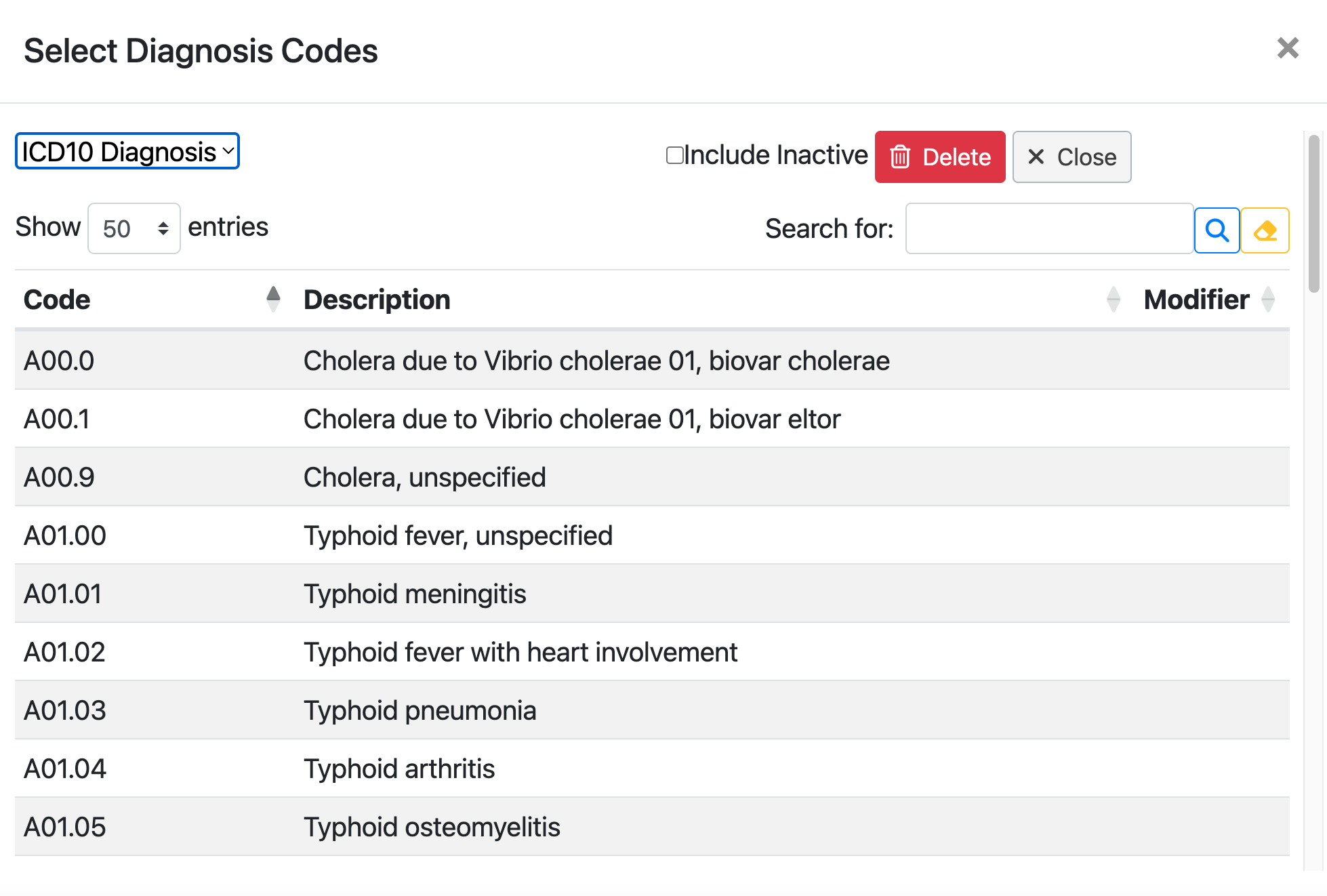
- Primary Diagnosis - What is the primary reason for the procedure being ordered. Clicking on this field brings up the form shown below which allows you to pull from three separate code sets.
- Procedure - Select from the following
- Procedure - A clinical or diagnostic test
- Intervention - A clinical action performed or requested for the patient
- Laboratory Test - A test requiring an outside lab
- Physical Exam - A routine physical examination for the patient
- Risk Category Assessment - Tests performed to evaluate a patients risk like fall risk, cardiovascular health risk, etc.
- Patient Characteristics - Not a medical intervention but a way to document patient specifics like BMI category
- Imaging - A request for medical imaging like an Xray or an MRI
- Encounter Checkup Procedure - An order for the patient to return to the office to review procedure results
- Order - A request for the above test to be performed
Step 2 - Continue
With the form filled out, you have four options to complete the procedure
- Add Procedure - add an additional procedure
- Save & Continue - save the form and continue in OpenEMR
- Save and Exit - save the form and exit the screen
- Transmit Order - transmit the order electronically [TODO how does this connect to external services]
- Cancel / Exit - cancel the form, disregarding any data you entered and exit the form