Managing Patient Information
This guide will walk you through managing your patient information records.
Prerequisites
- Your login credentials for OpenEMR
Searching for a Patient
There are two primary ways to find a patient in OpenEMR.
Method 1: Using the Patient Finder (Quick Search).
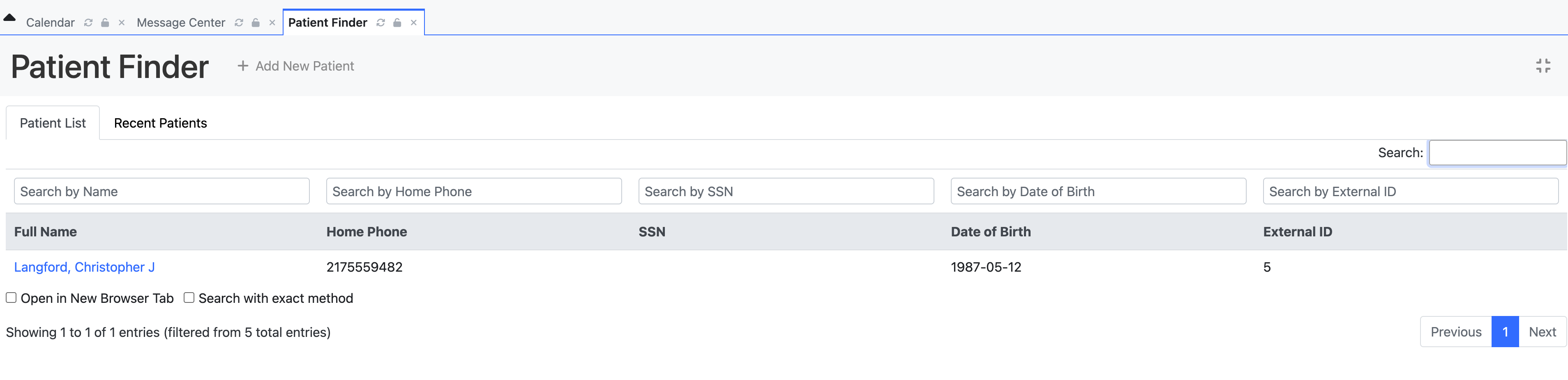
The Patient Finder can be found at the right side of the screen next to your user icon. The fastest way to find a patient is to type in their name or ID in this box.
- Type in the patient's Last Name, First Name, or Patient ID into the Patient Finder search bar.
- As you are typing, a drop down list will form with search results.
- Click on the correct patient's name to open their chart. This is also called the Patient Dashboard.
Method 2: Using the Detailed Search
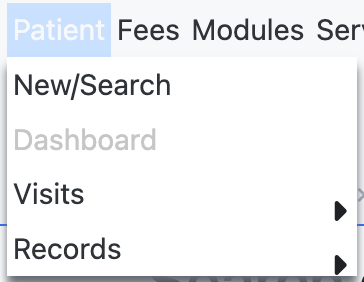
If you are searching for more specific demographic information, you can search via the New / Search function.
- From the ribbon at the top, go to Patient -> New/Search.
- On the Patient Finder screen, enter the demographic information you have, such as name or date of birth. Then click the Search button.
- A pop-up will appear with a filtered list of patients that match your search criteria.
- Click on a patient's name from this list to open their dashboard.
Creating a New Patient
If you can't find your patient in the system, you will have to add them. Please follow these steps here: Creating a New Patient