Getting Started with OpenCoreEMR
Welcome to your OpenCoreEMR dashboard! This guide will walk you through logging in the first time, securing your account by changing the password, and understanding the main navigation elements.
Prerequisites
Before you begin, ensure that you have:
- Received your OpenEMR account credentials from your administrator
- A modern web browser (Chrome, Firefox, Safari, or Edge - latest version recommended)
- A stable internet connection
- Your organization's OpenEMR URL (e.g.,
https://yourpractice.opencoreemr.com)
TIP - Browser Recommendations
For the best experience, we recommend using Google Chrome or Mozilla Firefox with JavaScript enabled and pop-up blockers configured to allow pop-ups from your OpenCoreEMR domain.
First-Time Login
Step 1: Access the System
- Open your web browser
- Navigate to your organization's OpenCoreEMR URL
- You should see the OpenCoreEMR login screen
Step 2: Log In
- Enter your Username provided by your administrator
- Enter your Password (you may be prompted to change it on first login)
- Select your Language preference (if applicable)
- Click Login
WARNING - PASSWORD SECURITY
You should practice good Password principles. Your password should be long, random, and not easily guessable through typical social engineering hacks. Use of a secure password manager (like OnePassword, Keeper Security, NordPass, and others) is encouraged. Never share your credentials with others.
Step 3: Changing Your Password
For security purposes, the first thing you should do is update your password from the temporary one assigned by your admin. To change the password, follow the steps below. 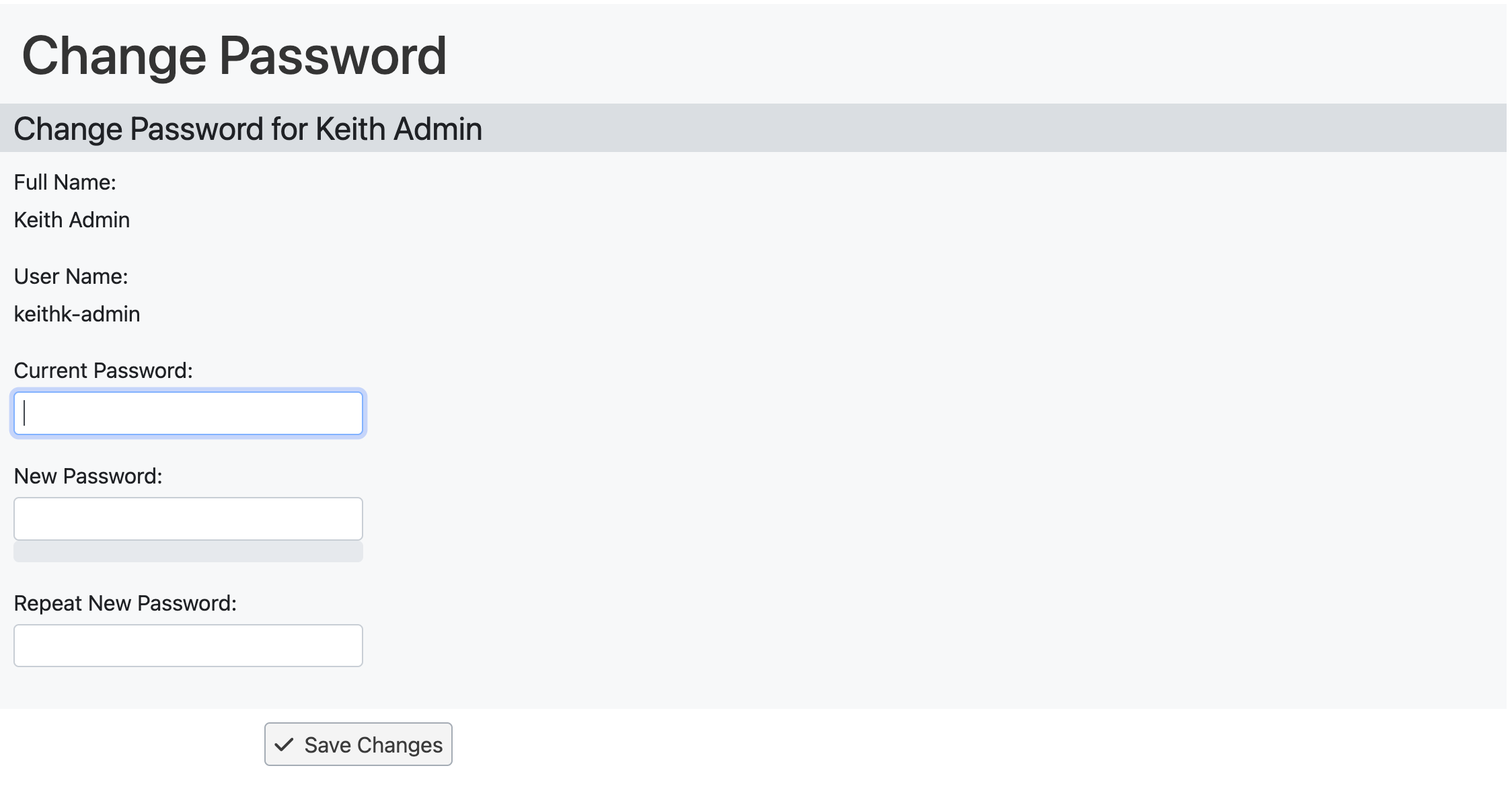
- Click on your user icon in the top right corner of the screen.

- Select Change Password
- Enter your Current Password
- Enter your New Password
- Confirm your new password by filling in the Repeat New Password field
- Click Save Changes
After your first login, you may need to:
- Change your password - Follow the prompts to set a secure password
- Review your user preferences - Set your timezone, date format, and other preferences
- Complete any mandatory training - Your organization may require you to review policies or complete training modules
Common Issues and Solutions
Can't Log In?
- Verify you're using the correct URL
- Check that Caps Lock is off
- Ensure your account hasn't expired
- Contact your administrator for password reset
Screen Looks Different?
- Clear your browser cache
- Ensure browser is up to date
- Check if a system update was recently deployed
- Verify you're logged in with the correct permissions
Features Missing?
- Verify you have the correct permissions for your role
- Check if the feature is enabled for your organization
- Contact your administrator to request access if needed
Next Steps
Now that you've completed the getting started guide:
- Create your first patient - See Your First Patient
- Set up your clinic - See Setting Up Your Clinic Facilities
- Personalize your experience - See Personalizing Your Experience
- Explore how-to guides - Browse the How-To guides for daily tasks
Questions? Contact our support team via OpenCoreEMR Support