Streamlining Patient Flow
This guide will walk you through OpenEMR's Flow Board - a visual representation tool that provides an at-a-glance overview of where every patient is in the process from check-in to check-out. This view is helpful for providers to quickly see and track the paitents for today.
What is the Flow Board?
The Flow Board is a digital dashboard that tracks the status of all scheduled appointments for the day. It helps improve communication between the front desk, clinical staff, and providers, ensuring a smooth and timely patient experience.
Step 1 - Accessing the Flow Board
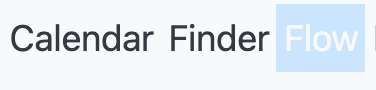
From the Main Menu, click on Flow at the top of the screen.
Step 2 - Updating the The Flow State
From the Calendar view, select an appointment and Edit it. From the pull down menu, select from the following flow states for an appointment
- Arrived - the patient is at the clinic and checked in at the front desk
- In Room - the patient is an examination room
- With Doctor - the patient is with the doctor
- Checked Out - the patient has comnpleted their visit and is checked out
Step 3 - Save
Save your changes to the calendar event for that patient. If you go back to the Flow board you will see the visual has changed to reflect your most recent changes. As the patient moves through their visit, different staff members can continue to update the status from the calendar. The patient's card on the Flow Board will automatically move to the correct column, keeping the entire team informed.