Ensora Integration
This guide will walk you through integrating OpenEMR with the Ensora eRX (e-Prescribing) feature in your account (Ensora was previously known as NewCrop). This setup is required for any users prescribing medications, including controlled substances.
Complete the steps below before your eRX activation meeting to significantly reduce the time needed for setup.
Prerequisites
- ID.me account
- Driver's license or passport
- Smartphone with camera (required identity verification)
- NPI number
- DEA number
- Facility EIN
Step 1 - Prepare for Identity Verification (ID.me)
Ensora uses ID.me to verify the identity of all prescribers. This step must be completed by the prescriber.
ID.me policy dictates that each individual user may only have one verified account, similar to a Social Security number. If multiple accounts are created, user must merge or close duplicates to avoide verificaiton issues. You can add multiple email addresses (work and personal) to a single account to manage different purposes. How to add additional emails to your ID.me account
If you already have an ID.me account, confirm that you are able to login to your account.
If you do not have an ID.me account, the prescriber will need the following information and will be guided through the identity verification steps when completing the Ensora integration.
- A Driver's License or Passport
- A Smartphone (so the provider can take a picture of their ID and themselves)
- A Valid Email Address
- Login Credentials for ID.me
Step 2 - Update/Create All Prescribers
The user account for each prescriber must be properly configured
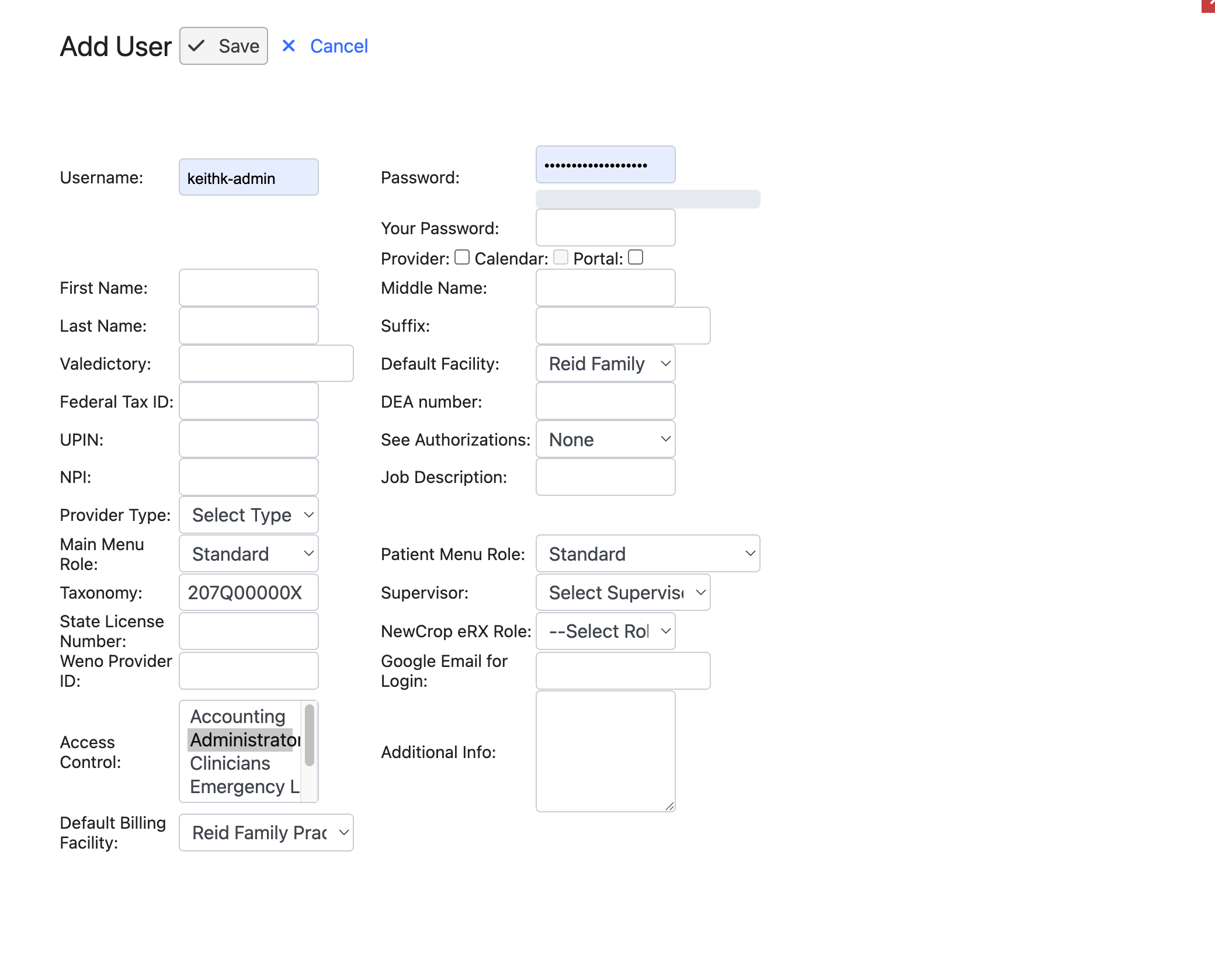
- Navigate to Administration -> Users
- Find the User Profile
- Ensure that the following information is entered correctly
* First Name
- Last Name
- Default Facility
- Provider Type
- Ensora eRx Role
- NewCrop Doctor - Full prescribing privileges
- NewCrop Midlevel Prescriber - Prescribing NP or PA that requires a supervising provider
- NewCrop Staff - Assists prescribing NP, PA, or Doctor
- NPI
- DEA Number
- Click Save
Note
Setting up Electronic Prescribing for Controlled Substances (EPCS) requires two users, one of which is needed for identity verfication. To complete the steps as a single user, you will need to create a temporary fake user account. If you are primary prescriber, set your Ensora eRx Role to NewCrop Doctor. Set the Ensora eRX Role for your temporary fake user account to be NewCrop Staff.
Step 3 - Update Your Default Facility
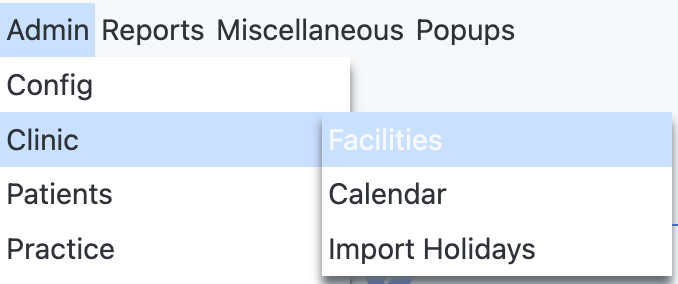
- Navigate to Administration -> Clinic -> Facilities
- Click on your primary Facility Name to edit it
- Make sure the following required fields are filled in
- Name
- Address (zip code must be 5 digits)
- Phone
- Fax Number (if you do not have a fax number, just enter your phone number again)
- Tax ID (EIN or SSN)
- Select the Toggle to mark the facility as the Primary Business Entity.
- Click Save
Step 4 - Create a Test Patient
A test patient with a valid address is needed to test prescribing once setup is complete.
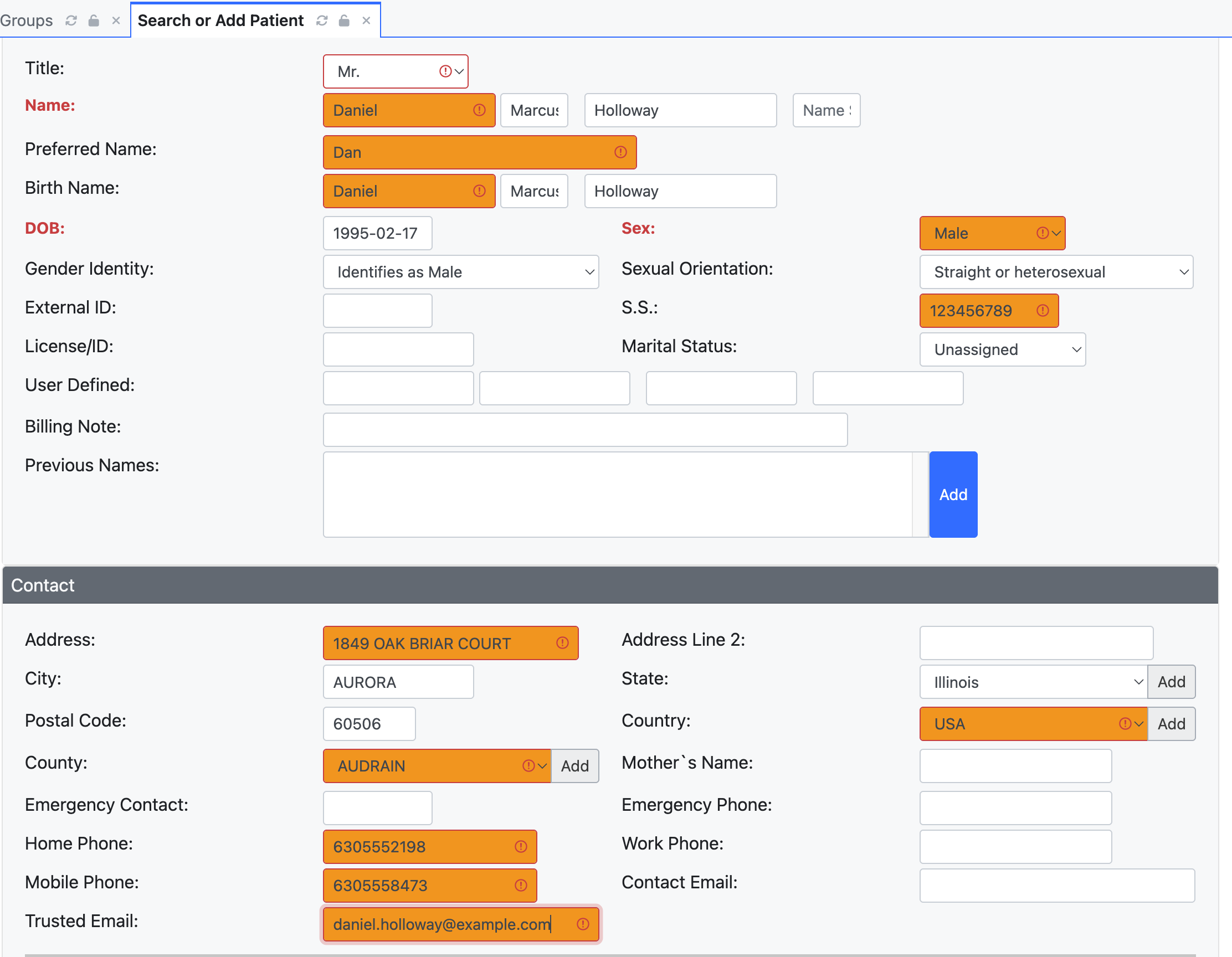
- Click Patient in the main menu to go to the Patient Finder
- Click + New Patient
- File out the following required fields
- First Name
- Last Name
- DOB (Date of Birth)
- Sex
- Select the Contact tab
- Fill out the following fields
- Address
- City
- State
- Postal Code
- Country
- Home Phone
- Scroll down and click Create New Patient
Step 5 - Confirm Ensora connection configuration
- Navigate to Administration -> Config -> Connectors
- Confirm that the fields for Ensora eRx Partner Name, Ensora eRx Name, and Ensora eRx Password are present. Enable Ensora eRx Service should be checked.
- If these fields are not populated, stop here and contact OpenCoreEMR Support. These fields are set by the OpenCoreEMR team.
- Confirm that you can see "NewCrop" in the top menu.
- If you do not not see NewCrop in the main menu, log out and log back in to relaunch the module.
Step 6 - Complete Ensora user registration process
- Open your test patient
- On the Patient Dashboard, click + Ensora MedEntry
- Read and accept the Ensora User Agreement
- You have the option to download the user manual
- Complete the steps based whether you require EPCS or not. "Sign up for eRx only" if you do not need to prescribe controlled substances.
- Sign up for eRX only
- Sign up for eRx with EPCS
- Once identity proofing is complete, you will need to Grant Prescriber in the Grant/Revoke Prescriber section in the EPCS Administration section. Note that Ensora creates a default Test, Doctor.
- Log in as your secondary user, the one with the NewCrop Staff role. As this secondary user, grant your primary prescriber.
- Log back in as your primary prescriber and complete the steps.
- After registration is complete, log out and back in to relaunch the module.