Create a New User
This guide will walk you through creating additional users in OpenEMR.
Prerequisites
Before you begin, ensure that you have:
- Your login credentials for OpenEMR
- Information about the new User you want to create
Creating a New User
Step 1 - Bring Up the Menu
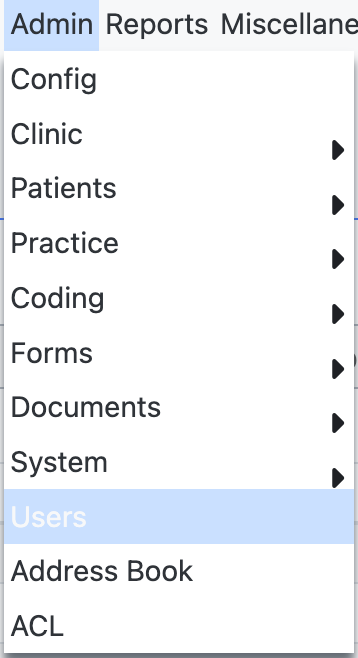
From the ribbon at the top, Click on Admin and scroll down to Users.
Step 2 - Add a User
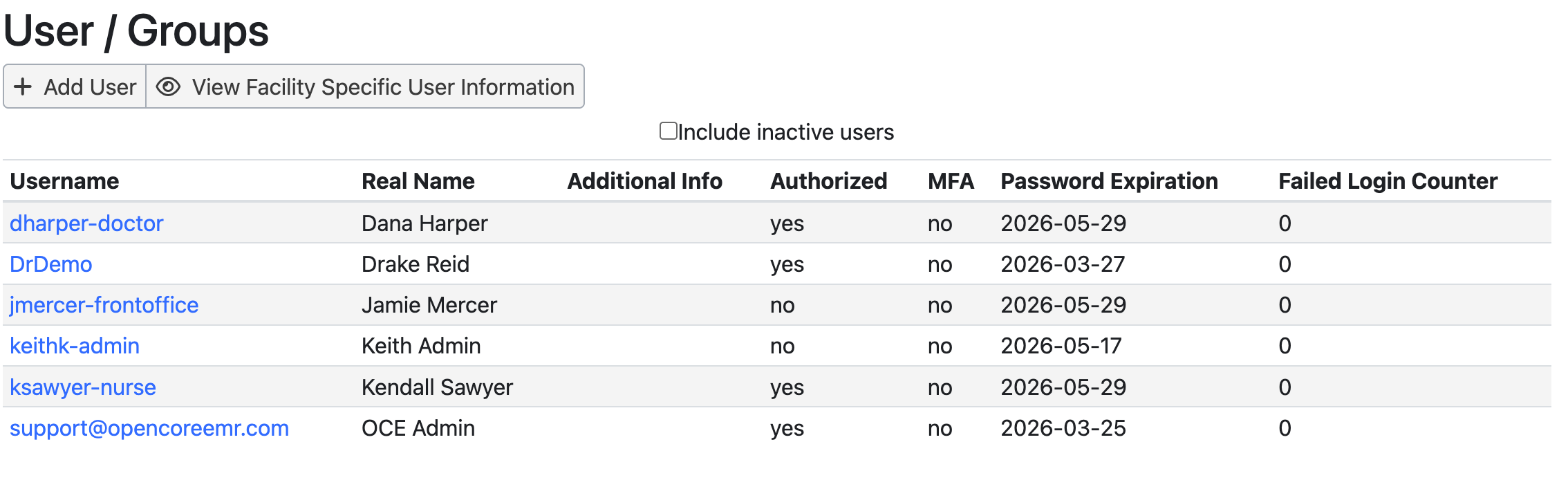
Click on the + Add User button under User/Groups
Step 3 - Create the User
Fill out the following information in order to create the new user. Username, Password, First name, last name, and access control role are required.
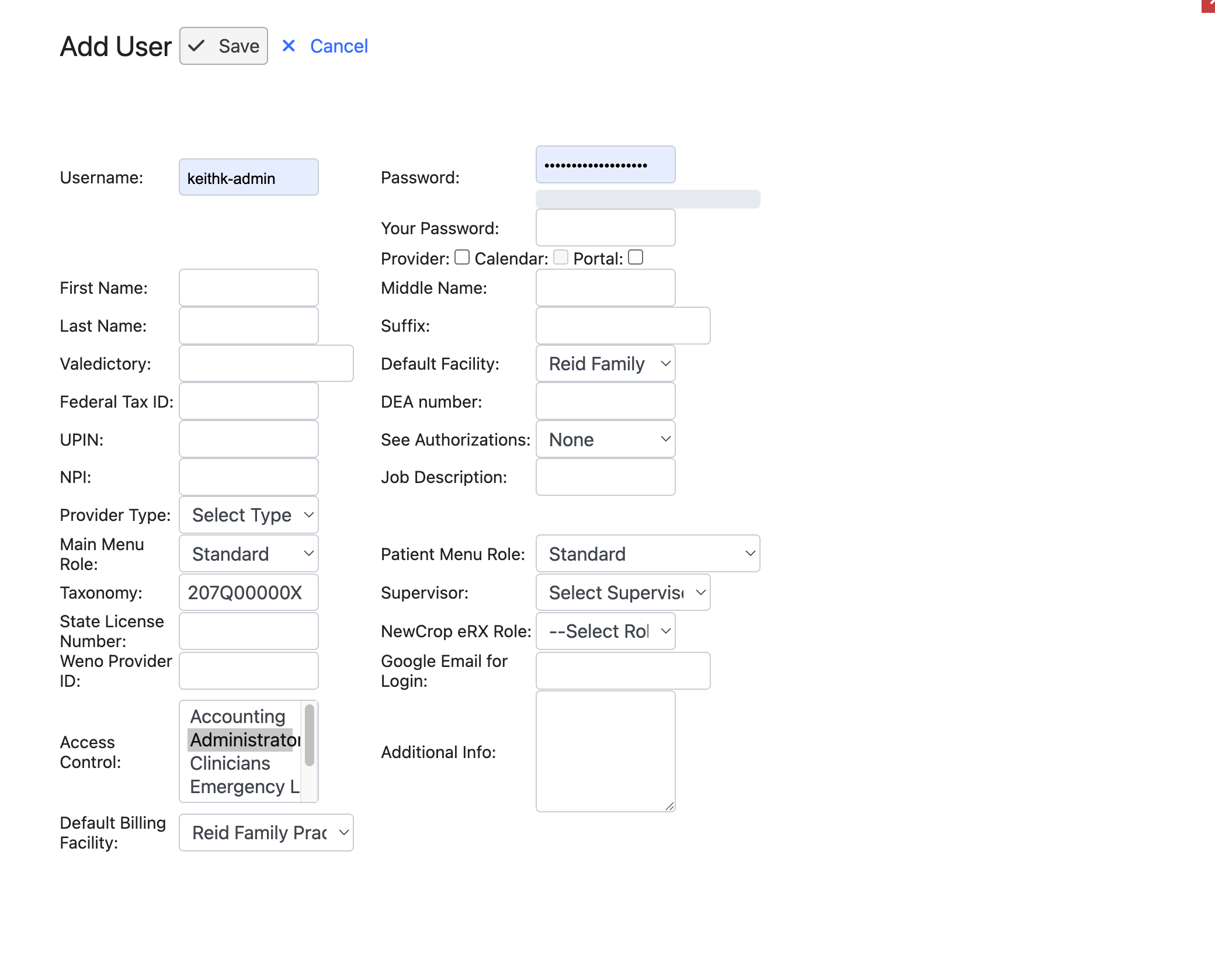
- Username - The name of the new user you are going to add (required). This value cannot be changed once it is set.
- Password - The password for the new user (required)
- Use best practice guidelines when creating a password for a new users.
- Your Password - Your password. You will need to enter in your own password to confirm that you have the permissions to create a new user in the system.
- First Name - The first name of the new user (required)
- Middle Name - The middle name of new user
- Last Name - The last name of the new user (required)
- Suffix - The suffix for the new user
- Valedictory - An indication of the degrees held by the new user like Dr, RN, CNA, NP, PA
- Checkboxes
- Provider - Select if user is a provider
- Calendar - Controls whether a user is displayed on the calendar. If checked, the user will display on the calendar.
- Portal - User can configure and use the Patient Portal
- Active - Controls whether user is active or inactive. By default, newly created users are active. This field is only displayed after user creation. Uncheck to deactivate user account.
- Federal Tax ID - The Federal Tax ID / EIN / SSN for a new user that will function as either billing or rendering providers. Any provider billing needs tax identifiers.
- UPIN - Unique Physician Identification Number, an older number used in the US for Medicare providers. You will need it for anyone performing Medicare billing. UPIN was discontinued for new providers and replaced with NPI.
- NPI - National Provider Indentifier. Required for providers involved with many workflows including Medicare/Medicaid billing, prescribing medication, and ordering labs.
- Provider Type - Allows you to select the kind of provider that you are adding to the system.
- Main Menu Role - Controls the way the Main Menu looks when this user logs into the system
- Taxonomy - There are dozens of Taxonomy fields in OpenEMR. Taxonomy helps determine how claims are routed in the system, if a provider is recognized for a particular service, and helps set compliance with the NPI registry rules. CMS guide to taxonomy codes
- State License Number - The State License Number for the user (if applicable)
- Weno Provider ID - a unique identifier assigned to a clinician by Weno Exchange, the company that provides integrated e-prescribing services.
- Access Control - What level of access control does the user have in the system (required). Recommendation to only specify one access control user per user.
- Default Billing Facility - If you have multiple billing facilities, you can select which one the users charges will route through
- Provider - If the user is a provider check the box, this automatically checks the calendar box as well. Having calendar access will allow the user to be available for appointments. Portal access means the user can log in to the patient portal.
- Default Facility - If the clinic has more than one facility, which facility do they predominantly work out of
- DEA Number - Drug Enforcement Administration registration number assigned to clinicians who are legally authorized to prescribe controlled substances. Required for prescibing providers.
- See Authorizations - See Authorization can have some impact on what a user can access depending on their user role. Recommendation is to use the Access Control roles for managing permissions.
- Job Description - A simple text field to assign notes for the clinicians job description
- Patient Menu Role - Allows customisation of OpenEMR's main menu. A programmatic change is required to additional options.
- Supervisor - Specify the supervising provider for mid-level provider roles.
- NewCrop eRX Role - Assign the level the clinician can prescribe via the Ensora / NewCrop integration. Required for Ensora integration.
- Google Email For Login - The google email for the new user
- Additional Info - A larger text box for additional information about the user
Step 4 - Save the User
When you are all finished, click the Save button at the top of the screen.